Step 1: Add the extension
Install GPT-6.1 Workspace from the Chrome Web Store and pin it. There's no account to create.
Step 2: Open an email thread
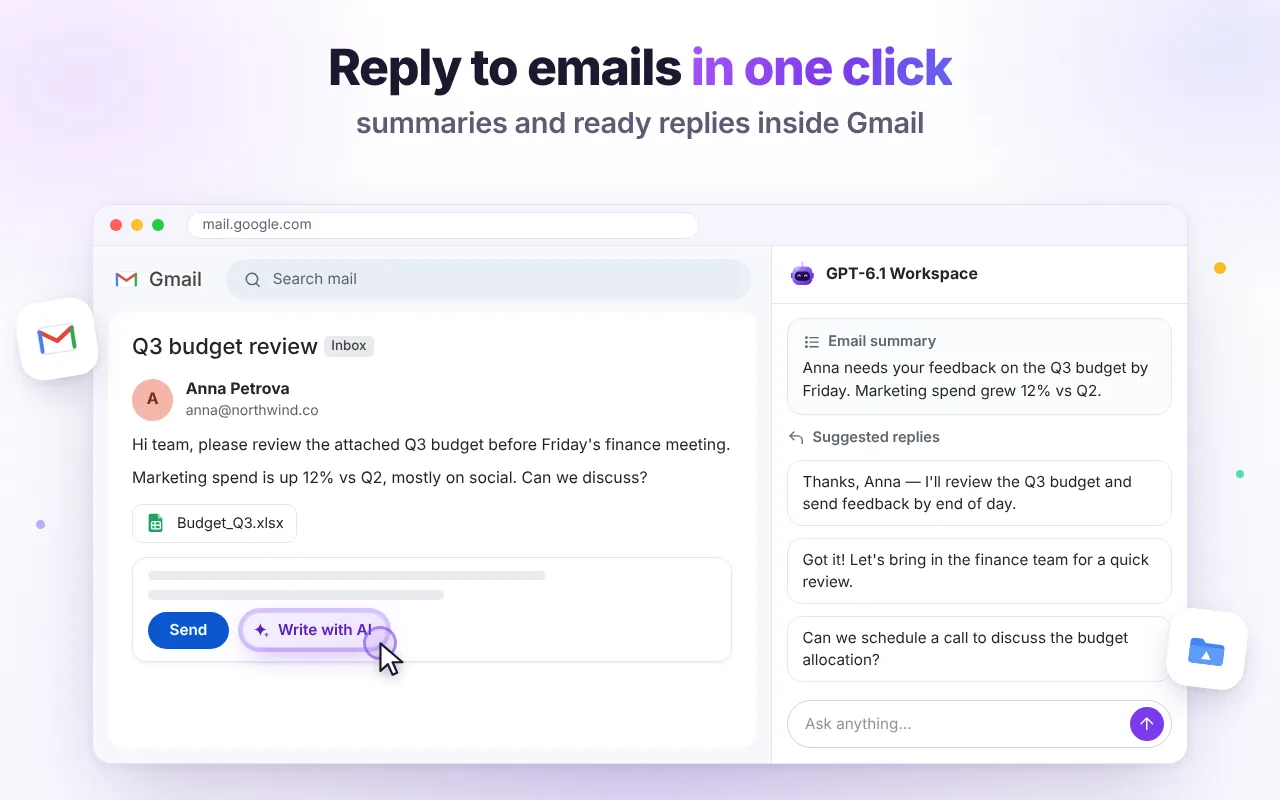
Open any conversation in Gmail. You'll see a small Summarize chip next to the subject. Click it to get who wants what, key facts and deadlines.
Step 3: Click Write with AI
Click Reply. Next to the blue Send button you'll find Write with AI. Choose a quick intent — accept, decline, thanks, ask for details, follow up — or describe what you want in your own words.
Pick a tone (friendly, formal, short) if you like. If you already typed a few words, the AI uses them as a starting point.
Step 4: Insert and review
Click Insert to put the reply into your draft. Read it, adjust anything specific (names, dates, numbers) and press Send yourself — the extension never sends emails for you.
Tips for better AI replies
- Be specific: “Agree to Thursday 3pm, ask for the agenda” beats “say yes”.
- Use the side panel for longer emails: open it with Alt+Shift+G and ask with the email included.
- Ask for two versions — one short, one detailed — and pick.
- For other languages, just write the instruction in that language.
Is it safe?
The extension doesn't use Gmail API permissions or your Google password. It reads the open thread only when you click an AI action, sends it to the AI to generate the reply, and doesn't store it. See the Privacy Policy.
GPT-6.1 Workspace is free and needs no account. Add it to Chrome and follow along.